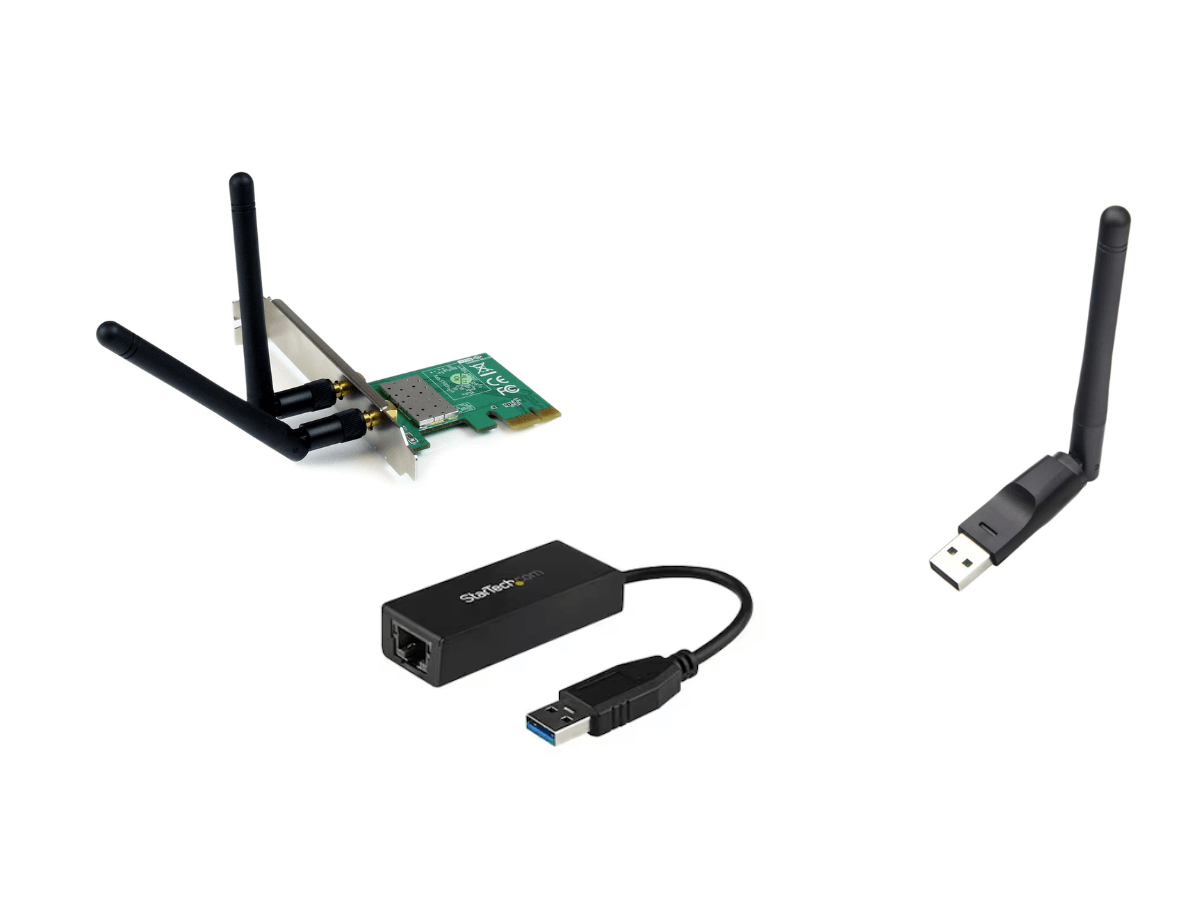
When your network adapter stops working, it can disrupt your internet connection and make basic online tasks a challenge. Whether you’re using a wired or wireless connection, a faulty adapter can leave you offline at the worst time. This guide will walk you through common reasons your network adapter might fail and how to troubleshoot the issue effectively.
1. Check Physical Connections and Hardware
First, ensure that all cables are properly connected. For wired adapters, the Ethernet cable must be securely plugged into both your device and the router. If the connection feels loose, try a different cable.
For wireless adapters, check if the network accessory is inserted properly into the USB or PCIe port. A loose or damaged port can prevent the adapter from functioning. Additionally, inspect the adapter for physical damage.
2. Verify the Adapter’s Power and Status
Sometimes, the issue lies in the power supply. If you’re using a USB network adapter, make sure it’s receiving power. Look for indicator lights on the adapter. If the lights are off, try switching to a different USB port or testing it on another computer.
If you’re troubleshooting a PCIe adapter, ensure it’s firmly seated in the motherboard slot. Additionally, ensure the device isn’t overheating, as this can cause temporary failures.
3. Update or Reinstall Drivers
Outdated or corrupted drivers are a common cause of network adapter issues. To fix this:
- Open your device’s Device Manager.
- Locate the network adapter under the “Network Adapters” section.
- Right-click on the adapter and choose “Update Driver.”
If updating doesn’t work, uninstall the driver and reinstall it. Always download the latest drivers from the manufacturer’s official website to ensure compatibility.
4. Check Network Settings
Sometimes, incorrect network settings can prevent the adapter from working. To troubleshoot:
- Ensure that Airplane Mode is turned off if you’re using a laptop.
- Verify that the device is set to automatically obtain an IP address.
- Reset your network settings to default by using the “Network Reset” feature in Windows or macOS.
This can resolve configuration issues without needing advanced technical skills.
5. Run the Network Troubleshooter
Modern operating systems come with built-in troubleshooting tools. In Windows, for example, you can:
- Right-click on the network icon in the taskbar.
- Select “Troubleshoot Problems.”
- Follow the on-screen instructions.
This tool automatically identifies and resolves common issues with the network adapter.
6. Disable and Re-enable the Network Adapter
Sometimes, a simple reset can solve the problem. Disable the network adapter in your system settings and then re-enable it. Here’s how:
- Open the Control Panel and navigate to “Network and Sharing Center.”
- Click on “Change Adapter Settings.”
- Right-click on your network adapter and select “Disable.”
- Wait a few seconds, then right-click again and choose “Enable.”
This process resets the connection and may resolve minor glitches.
7. Scan for Malware or Viruses
Malware can disrupt your system’s ability to connect to the internet by targeting the network adapter. Run a full system scan using reliable antivirus software to ensure your device is not infected. Removing harmful software can restore normal functionality.
8. Test the Network Adapter on Another Device
If all else fails, test the adapter on a different computer or laptop. If the network adapter works fine on another device, the problem likely lies within your system. However, if it still doesn’t work, the adapter itself may be faulty.
9. Replace the Adapter if Necessary
Sometimes, hardware issues are beyond repair. If your network adapter is damaged or outdated, replacing it with a reputable seller like Hafeez Center Online Store might be the best solution. Ensure the replacement is compatible with your device and supports the latest networking standards, such as Wi-Fi 6 or Gigabit Ethernet.
Final Thoughts
Troubleshooting a faulty network adapter can be frustrating, but with the right steps, most issues are easy to fix. Start by checking physical connections, updating drivers, and resetting settings. Additionally, using tools like the network troubleshooter or antivirus scans can save time. However, if the problem persists, consider testing or replacing the adapter.
By following this guide, you can restore your internet connection and get back online quickly. A functioning network adapter is essential for staying connected in today’s digital world, so regular maintenance is key.